
VPN safety guide + paid test evidence
VPN Kill Switch: How It Works and How to Test It
The checkbox is the easy part. The useful question is what happens when VPN protection disappears. Here is a reproducible Windows test, a guide to Standard, Advanced and App Kill Switch behavior, and the evidence we recorded across nine paid VPN reviews.
Our provider observations come from paid Level 4 review workflows completed from May through July 2026, meaning we purchased and used the services rather than scoring feature pages alone. The test is a consumer-level functional check, not packet capture, source-code review, or a guarantee about every app version and operating system. Reviews Ally may earn a commission when you use some links elsewhere on our site. Read our advertising disclosure.
Use this page to
Understand the control, trigger it safely, and read the result correctly
A kill switch test is only useful if you know which failure condition you created. Closing a visible VPN window, pressing Disconnect, and actually losing the protected tunnel can produce three different situations. We keep those distinctions visible instead of awarding a pass or fail to the wrong event.
Understand kill switches
See what the control is supposed to block and why an unexpected drop is different from a deliberate disconnect.
Run the Windows test
Follow our baseline-IP, forced-interruption, fresh-request, and recovery procedure without doing sensitive work during the test.
Compare kill switch modes
Separate system-wide, Advanced/Permanent, and app-level behavior without assuming provider labels mean the same thing.
Inspect our paid-review evidence
See what was recorded for nine VPNs, including the cases where the interruption trigger or test depth differed.
Fix blocked internet
Work through the common reasons a VPN can leave traffic blocked after a disconnect before changing firewall or network settings.
See our broader methodology
Keep this focused test in context with our IP, DNS, WebRTC, split-tunneling, and other VPN review checks.
Start with the trigger
What a VPN kill switch actually does
A VPN kill switch is a traffic-control feature intended to stop unprotected network access when VPN protection disappears under the conditions that implementation is designed to cover. The practical goal is narrow: if the protected route fails unexpectedly, your device or selected apps should not quietly continue over the ordinary internet connection.
That does not make a VPN “leak-proof.” A kill switch says nothing by itself about logging, encryption quality, DNS behavior while the tunnel is healthy, WebRTC, server security, or whether every future app build will react identically. It is one safety control with a specific job.
Unexpected VPN drop vs. manual disconnect
This is the distinction that prevents a lot of bad home tests. A standard kill switch can be designed for accidental tunnel loss while a deliberate Disconnect action is treated as permission to return to the normal connection. A stricter mode can keep non-VPN traffic blocked even after you disconnect on purpose.
Proton VPN’s current documentation is a clean example: its Standard mode covers accidental VPN dropouts, while Advanced Kill Switch also keeps internet access blocked when the VPN is manually disconnected and persists across restart. That is Proton’s implementation, not a naming standard every VPN must follow.
Labels are not a standard
Standard, Advanced, system-level, and app-level kill switches
VPN apps use overlapping names for controls that can behave differently. Read the behavior first and the marketing label second. “Advanced,” “Permanent,” “Always,” and “Strict” are not interchangeable networking specifications.
| Mode concept | What it is meant to protect | What manual Disconnect may do | Main caution |
|---|---|---|---|
| Standard / system-wide | Broader device traffic after an unexpected VPN loss. | May restore normal internet because the user deliberately ended the VPN session. | Do not fail it for a trigger the provider explicitly treats as user intent. |
| Advanced / Permanent / Always | Keeps non-VPN traffic blocked more persistently, sometimes even when the VPN app is disconnected or closed. | Often remains blocked until the VPN reconnects or the stricter mode is disabled. | Persistence, boot behavior, labels, and platform support are provider-specific. |
| App-level | Selected applications rather than the entire device. | The selected app may be terminated or blocked while unrelated apps remain online. | It is not equivalent to a system-wide internet kill switch. |
Current documentation shows how different those models can be. NordVPN separates Internet and App Kill Switch behavior on Windows. Private Internet Access documents standard and Advanced Kill Switch behavior, while PIA’s split-tunneling documentation describes an app-based kill-switch option. The useful question is still “what traffic does this mode block, and under which trigger?”
Reproducible Windows test
How to test a VPN kill switch safely on Windows
This procedure is based on the method used during our paid VPN review cycle, with one important interpretation improvement: a result can be Inconclusive if the test never actually takes the VPN tunnel down. That matters because killing a visible app interface can leave a background VPN service running normally.
1. Prepare the test
- Record your real public IP privately. Turn the VPN fully off and note the public IP shown by a diagnostic page such as IPLeak.net or another service you trust. You do not need to screenshot or publish it.
- Enable the intended kill switch mode. Open the VPN settings and confirm the control you actually want to test is on. If the app offers Standard and Advanced/Permanent modes, write down which one you selected.
- Connect the VPN. Use a remote server and confirm the public IP shown by the diagnostic page changes to the VPN exit IP.
- Keep the check non-sensitive. Leave only a diagnostic tab or ordinary test page ready. Do not use an active banking, work, upload, or torrent session as your warning light.
2. Simulate an unexpected app/tunnel failure
- Force-close the relevant VPN process. On Windows, open Task Manager with Ctrl+Shift+Esc, locate the VPN process under Processes or Details, and use End task. For this test, do not start by pressing the VPN app’s normal Disconnect button.
- Confirm the tunnel actually went down. A closed window is not enough. If the VPN still reports a protected connection or a fresh IP check still shows the same VPN exit IP, the failure condition may never have occurred.
- Make a fresh request. Refresh the diagnostic page or open a new ordinary site. Do not treat an already-loaded cached page as proof that new network traffic succeeded.
- Classify the outcome, then recover. Use Pass, Fail, or Inconclusive below. Relaunch/reconnect the VPN afterward and confirm the intended protected route is back before resuming sensitive activity.
Decision flow
- Record the baseline IP privately. Then enable the kill switch, connect the VPN, and confirm a VPN exit IP.
- Force the interruption. End the relevant VPN process instead of using normal Disconnect.
-
Did the protected tunnel actually go down?
- No → Inconclusive. The test did not create the failure condition. A background service may still be maintaining the VPN.
- Yes → Continue. Make a fresh network request.
-
Can the fresh request reach the internet outside the VPN?
- No → Pass at the consumer/browser level. New traffic is blocked while the tunnel is down.
- Yes, and the real baseline IP is visible → Fail. Unprotected traffic reached the internet after the confirmed drop.
- Restore the protected route. Relaunch or reconnect the VPN and verify normal VPN connectivity before resuming sensitive traffic.
The Pass / Fail / Inconclusive classification is our improved reader-facing interpretation. We do not retroactively pretend every early 2026 Evidence Log used these three formal labels. If the tunnel is down and fresh traffic succeeds but the route/IP result is ambiguous, do not call it a Pass; stop sensitive traffic and investigate the unresolved route first.
A common false negative
Why pressing Disconnect is a different kill switch test
Pressing Disconnect tells the VPN app that you intentionally want to end the session. An unexpected process, service, tunnel, or network failure is a different event. If a standard kill switch is documented to protect accidental dropouts, normal internet returning after a deliberate disconnect can be correct behavior rather than a security failure.
Stricter modes deliberately change that contract. Proton’s current Advanced Kill Switch, for example, blocks non-VPN internet even after manual disconnect and requires the VPN to reconnect or the stricter control to be turned off. PIA currently documents a similar distinction between its ordinary VPN Kill Switch and Advanced Kill Switch. Check the behavior promised for your exact app and mode before grading the result.
The OS changes the rules
VPN kill switches on Windows, Android, iOS, macOS, and Linux
Our nine-provider hands-on comparison is primarily a Windows 10 evidence set. Other operating systems can expose different VPN APIs, persistence controls, and provider features, so a Windows pass should stay a Windows pass.
| Platform | What matters | Boundary to keep in mind |
|---|---|---|
| Windows | Consumer VPN apps can implement their own Standard, Advanced, system-wide, or app-level controls. | Microsoft’s enterprise-oriented LockDown VPN is a separate Windows VPN policy concept, not a synonym for a consumer app’s kill-switch toggle. |
| Android | Android 7.0/API 24+ supports Always-on VPN, and Android can block network connections that do not use the VPN. | Menu names and provider support vary. Android’s OS-level control should not be assumed to match a Windows app’s mode labels. |
| iOS / iPadOS | Consumer VPN behavior depends on the provider app and Apple’s networking capabilities. | Apple’s documented Always On VPN is a supervised-device, organization-managed IKEv2 feature. It is not simply another name for every consumer VPN app’s kill switch. |
| macOS | Provider clients can use different network controls, labels, and persistence behavior from their Windows versions. | Check the current macOS documentation for the provider you use; do not transfer our Windows result across platforms. |
| Linux | Implementation can differ between GUI apps, command-line clients, distributions, firewall frameworks, and provider-supported setups. | A provider can offer a strict or persistent mode on Linux without making it identical to its Windows implementation. |
Microsoft’s LockDown VPN documentation is included to show the OS-policy boundary; it is not the procedure we used to test the nine consumer VPN apps.
First-party evidence, not a ranking
What we observed across nine paid VPN reviews
From May through July 2026, we purchased and reviewed nine VPN services at Evidence Level 4, with Windows 10 as the primary desktop environment. Kill-switch checks were part of those workflows. As the first full test cycle progressed, our recording became more structured, so the rows below preserve differences in trigger and detail instead of flattening them into a fake “9/9 passed” statistic.
| VPN | Review | Mode(s) recorded | Manual behavior evidence | Recorded result | Evidence note |
|---|---|---|---|---|---|
| NordVPN | May 2026 | Internet Kill Switch + App Kill Switch | Evidence Log records both as tested. | Both worked in the documented check. | The provider file does not record the failure trigger at the granularity of later tests, so we do not invent per-trigger results. |
| Private Internet Access | May 2026 | VPN Kill Switch + Advanced Kill Switch | Yes; the research says our supplied guidelines were followed. | Worked normally in the recorded manual check. | PIA’s app-based behavior was also tested through its split-tunneling workflow; we keep that separate from the global controls here. |
| PureVPN | May 2026 | Internet Kill Switch + App Kill Switch | Yes; the dictated research says the explained procedure was followed. | Worked as expected in the recorded check. | Mode names in this row are tied to the May Windows review. |
| Proton VPN | June 2026 | Standard + Advanced/Permanent | Yes. | Worked as expected in the recorded manual check. | Current official documentation is used to explain Standard vs. Advanced semantics; the hands-on result remains dated. |
| Surfshark | June 2026 | Standard Kill Switch; no Advanced/Strict mode found in that review. | Yes. | Worked as expected in the recorded manual check. | “No Advanced/Strict mode found” is an observation from that app/review, not a permanent cross-platform claim. |
| CyberGhost VPN | June 2026 | Automatic Kill Switch | No manual test recorded. | The research records the automatic behavior as working as expected. | We do not count this as a manual forced-drop pass. Current CyberGhost documentation describes automatic blocking after an unexpected drop. |
| PrivateVPN | July 2026 | None / Auto / Always + Application Guard | Manual behavior check recorded. | Worked as expected in the documented check. | Terminology and behavior are tied to the tested Windows app and should not be generalized to every platform. |
| VPN.ac | July 2026 | Kill Switch in the tested OpenVPN workflow | Yes, but the recorded trigger was Disconnect. | Internet was blocked; no leak was observed; internet restored normally. | The log explicitly says the process was not closed and the server was not switched. We do not call this a forced-process test. |
| Turbo VPN | July 2026 | Paid-plan system-wide Kill Switch in the tested Windows app | Yes; disconnect, app-process close, and server change are recorded. | Internet was blocked; the real IP did not appear; access restored normally. | This is the most granular trigger record in the current set, but it is still one dated Windows setup. |
This table compares evidence records, not VPN quality. Different log depth is the reason we do not calculate a winner or a nine-provider kill-switch pass rate.
Interface evidence has a limit
A kill switch settings screenshot proves availability, not behavior
A screenshot can establish that a control existed in the app we reviewed, how it was labeled, and which mode was selected. It cannot prove what the network did after a failure. For behavior claims, we use the recorded test notes and Evidence Logs separately.
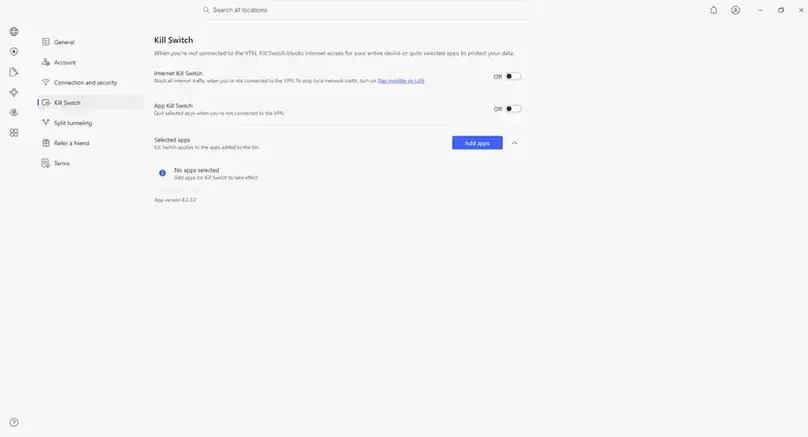
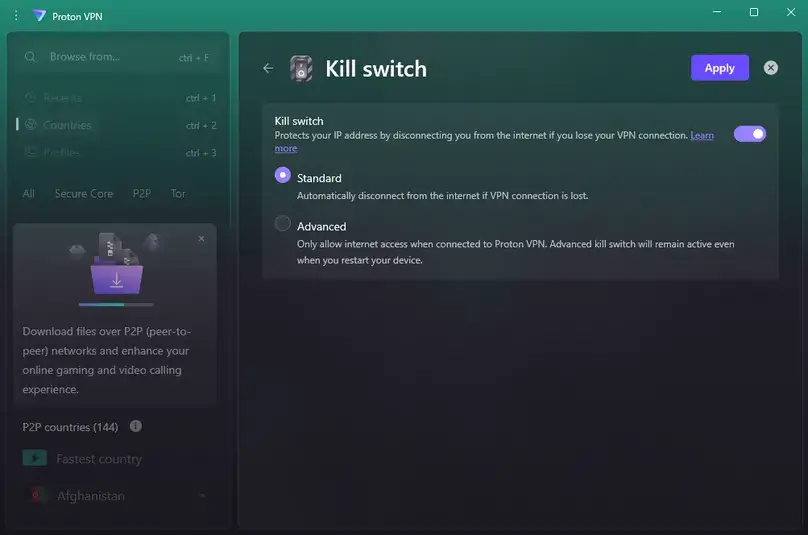
We do not have a screenshot that purports to show the internet-blocked state, and we do not imply that we do. A browser error screenshot would add little compared with a dated behavior record plus an explicit test procedure.
Blocked can be correct
Why your internet may stay blocked after disconnecting the VPN
“No internet after disconnect” sounds like something broke. With a persistent kill switch, it can be exactly what you asked the VPN to do. Identify the active mode before reaching for Windows network resets or firewall rules.
Advanced or Permanent mode is still active
A stricter mode may require an active VPN connection for any internet access. Reconnect the VPN or intentionally disable that mode if you want ordinary internet access.
Android is blocking non-VPN traffic
Always-on VPN combined with “Block connections without VPN” can intentionally prevent network access until the VPN path is available again.
A background service is still enforcing policy
Closing a visible app window does not guarantee the VPN service, tunnel, or network policy disappeared. Relaunch the client and check its actual connection state.
A rule did not recover cleanly
A split-tunneling, app, firewall, or VPN network rule can remain in an unexpected state after a crash. Start with a normal reconnect/restart of the VPN app rather than deleting system rules.
Keep the recovery boring
VPN kill switch not working: a safe troubleshooting sequence
Troubleshoot from the least destructive explanation outward. A misread mode, a tunnel that never actually dropped, or a background service is more useful to rule out first than a scorched-earth network reset.
- Confirm the kill switch is enabled. Check the current app/profile rather than assuming yesterday’s setting survived an update or reinstall.
- Confirm the selected mode. Read the provider’s current description of Standard, Advanced/Permanent, system-wide, or app-level behavior.
- Confirm the tunnel really dropped. If the VPN route remained active, the result is Inconclusive rather than a failure.
- Repeat with a fresh request. Use a new page load or IP check rather than relying on an already-loaded tab.
- Reconnect normally. Relaunch the VPN app, reconnect, and verify the protected route before changing lower-level network settings.
- Check OS-level persistence. Android Always-on/Block connections without VPN or enterprise-style policies can intentionally keep traffic blocked.
- Check split-tunneling and app rules. A per-app rule can make one program behave differently from the rest of the device. Use our VPN split-tunneling guide to identify the intended VPN and direct routes before grading the failure result.
- Update the VPN client. If the problem reproduces on an old build, update through the provider’s official channel and repeat the same test.
- Escalate a confirmed failure. If unprotected traffic reaches the internet after a verified unexpected drop, pause sensitive activity and contact the provider before trusting that configuration.
If a confirmed failure remains unresolved and you want to compare alternatives, use our Best VPN Services guide. The kill-switch result should be one part of that decision, not a substitute for speed, privacy, app quality, support, and other evidence.
Related test, different question
Kill-switch testing is not the same as VPN leak testing
A kill-switch check asks what happens when the protected VPN connection is interrupted. A leak test asks what network information is visible while you are trying to use the VPN normally. Those are related safety questions, but they are not interchangeable.
Kill-switch test
Interrupt the protected route, verify that the tunnel actually went down, then check whether new unprotected traffic is blocked.
Leak test
Inspect public IP, DNS, WebRTC, IPv6, and related routing signals while the VPN is active under a defined configuration.
We use the real public IP as a private comparison value in the kill-switch procedure only because it helps identify an unprotected route after a confirmed drop. The broader IP/DNS/WebRTC boundary is documented in How We Test VPNs; this page deliberately does not turn into a full leak-testing tutorial.
Where our evidence stops
Limits of our consumer kill-switch test
This was our first full paid VPN review cycle, and the methodology became more structured as we completed it. The core kill-switch procedure was documented, but some early provider records contain less trigger detail than later ones. We preserve the observations that were actually recorded instead of rewriting older checks after the fact. The work remains genuine; the improvement was in repeatability and documentation depth.
| Limit | What we actually have | What it means |
|---|---|---|
| Consumer/browser-level test | Forced/drop behavior plus fresh browser/network requests and public-IP comparison. | A pass supports functional blocking in that setup. It does not prove that zero packets escaped during the transition. |
| No packet capture or driver audit | No Wireshark packet-timing study, firewall-driver inspection, source-code audit, or penetration test. | Do not convert these results into packet-level or implementation-security guarantees. |
| Different first-cycle log depth | CyberGhost has no recorded manual test; VPN.ac’s recorded manual check used Disconnect rather than forced process termination; other rows vary in trigger detail. | The table is evidence history, not nine identical laboratory trials. |
| Windows-centered evidence | Windows 10 is the primary common desktop platform in the nine paid workflows. | A Windows result does not establish behavior on macOS, Android, iOS, Linux, routers, or another app version. |
| Dated app behavior | Hands-on observations are dated May–July 2026; current terminology is rechecked separately from official sources. | Provider updates can legitimately change mode names, defaults, and implementation after our test. |
| No blocked-internet screenshot | We have settings screenshots and recorded behavior notes, but no screenshot presented as proof of the blocked state. | We say exactly that. A settings image is not promoted into network-behavior evidence. |
With more lab resources, we could add packet capture, repeated failure triggers, multiple operating systems and ISPs, sleep/wake transitions, Wi-Fi-to-cellular changes, and scheduled retests. That would broaden the evidence. It would not make the consumer tests we already recorded imaginary or useless; it would tell us how much farther the conclusions can travel.
Primary sources + our own evidence
Sources and test references
Provider and operating-system behavior can change, so current technical claims use primary documentation rechecked on August 7, 2026. The nine-provider behavior table comes from ReviewsAlly’s own paid review files and Evidence Logs; provider documentation is not used to retroactively upgrade a hands-on result.
Operating-system sources
Current provider documentation
- Proton VPN: Advanced Kill Switch
- NordVPN: Internet and App Kill Switch behavior
- Private Internet Access: Windows Kill Switch settings
- Private Internet Access: split tunneling and app-based control
- Surfshark: How to use Kill Switch
- CyberGhost VPN: Windows Privacy Settings / Automatic Kill-Switch
- PureVPN: Windows Internet Kill Switch
- PrivateVPN: Kill Switch setup documentation
ReviewsAlly hands-on evidence
Our internal source set includes the supplied Windows kill-switch test procedure, nine paid Level 4 Evidence Logs, nine final dictated research files, and first-party screenshots from the May–July 2026 VPN review cycle. See How We Test VPNs for the wider evidence system.
Diagnostic reference
The historical procedure uses a public-IP diagnostic page such as IPLeak.net to compare the normal public IP with the VPN exit IP. That service is external to ReviewsAlly and has its own data practices. There is no custom ReviewsAlly public-IP checker on this page, and the page does not ask the reader to submit a public IP to us as part of the test.
Hands-on review cycle: May–July 2026. Platform/provider documentation rechecked: August 7, 2026.
Common questions
VPN Kill Switch FAQ
What does a VPN kill switch do?
A VPN kill switch is designed to stop unprotected network traffic when VPN protection disappears under the conditions that implementation covers. A system-wide mode can block broader device traffic; an app-level mode can instead protect selected programs. It does not prove that the VPN cannot leak through every other mechanism.
How do I test if my VPN kill switch works?
Record your normal public IP privately, enable the kill switch, connect the VPN and confirm the VPN exit IP. Pause sensitive activity, then force an unexpected VPN process/tunnel interruption rather than starting with normal Disconnect. Confirm the tunnel is actually down and make a fresh network request. Blocked traffic is a consumer-level Pass; successful unprotected traffic showing your real baseline IP is a Fail; a tunnel that never dropped is Inconclusive.
Should my internet stop when I disconnect the VPN manually?
Not always. A standard kill switch may be designed for unexpected connection loss and allow normal internet after a deliberate Disconnect. An Advanced, Permanent, or similar strict mode may intentionally keep traffic blocked after manual disconnect. Check the current behavior documented for your exact VPN app and mode.
What is an Advanced or Permanent Kill Switch?
Those labels usually describe a more persistent blocking mode that requires a VPN connection for internet access more broadly than a standard dropout-only mode. The names are provider-specific, though, so do not assume two VPNs implement “Advanced” identically.
What is an App Kill Switch?
An app-level kill switch protects selected applications rather than necessarily blocking the entire device. Depending on the provider, it can terminate or block chosen apps if VPN protection disappears. It should not be treated as identical to a system-wide internet kill switch.
Why is my internet blocked after disconnecting the VPN?
A persistent kill switch may be doing exactly what it was configured to do. Reconnect the VPN and check whether an Advanced/Permanent mode, Android Always-on plus Block connections without VPN, or another persistent network rule is active. Start with the VPN app’s normal recovery path before deleting firewall rules or resetting the network stack.
Does Android have a VPN kill switch?
Android supports Always-on VPN from Android 7.0/API 24 and can block network connections that do not use the VPN. The exact menu path and whether a particular provider supports the relevant behavior can vary by device, Android build, and VPN app.
Does a working kill switch guarantee that a VPN never leaks?
No. A successful kill-switch check supports the specific failure behavior you tested. It does not prove zero packets escaped, validate every DNS/WebRTC/IPv6 condition, audit the VPN’s source code or driver, or guarantee the same result on another OS, network, server, protocol, or app version.