
VPN routing guide + paid Windows evidence
VPN Split Tunneling Explained
VPN split tunneling lets selected traffic take a different route from the rest of your device. You can keep most traffic inside the VPN and bypass it for a few apps or destinations, or keep most traffic on the normal connection and send only selected apps through the VPN. Full tunneling is the simpler privacy default; use split tunneling for a defined exception you can verify.
Evidence note: We purchased and used all nine VPNs in the Windows comparison below, qualifying the underlying workflows as Evidence Level 4 — Paid workflow review. The feature records are not identical: some preserve both public-IP routes in more detail than others, and two apps did not expose a native Windows split-tunneling control. Provider-documented support on other platforms is labeled separately. See how ReviewsAlly tests VPNs. Reviews Ally may earn a commission when you use some links elsewhere on our site. Read our advertising disclosure.
Use this page to
Follow the route, not the feature label
“Bypasser,” “exceptions,” “inverse split tunneling,” and “only VPN” can describe opposite policies. Start with the outcome you need, then verify which public route each selected application actually uses.
Understand the routing modes
Compare full tunnel, split-exclude, and split-include without relying on provider terminology.
Choose include or bypass
Keep the VPN as the default unless only a small, named set of traffic needs it.
Test both routes safely
Run a privacy-conscious, dual-application public-IP check without sending your IP to ReviewsAlly.
Compare our Windows findings
See the controls and route behavior preserved across nine paid VPN review workflows.
Check security trade-offs
Understand what bypassed traffic gives up and why a complicated rule set deserves suspicion.
The short answer
Split tunneling applies different VPN routes to selected traffic
With a full tunnel, eligible device traffic uses the VPN. With split tunneling, a rule sends selected apps, websites, IP destinations, or network ranges through either the VPN route or the direct internet route. The visible result is often that two applications on the same device show different public IP addresses at the same time.
Split tunneling does not create a second internet subscription, and it does not inherently change the tunneling technology. A protocol such as WireGuard or OpenVPN defines how the VPN tunnel operates; split tunneling decides which traffic is assigned to it. Our VPN protocol comparison explains that separate layer.
If you do not have a specific compatibility, local-network, or routing problem, leave full tunneling on. Every exception adds another decision that the app, operating system, and user must keep correct.
Three policies
Full tunnel, split-exclude, and split-include route traffic differently
The phrase “supports split tunneling” is incomplete. It does not tell you which route is the default or what happens to the selected item. Use this three-state model instead.
Full tunnel
VPN is the default for all eligible traffic
Split-exclude / bypass
VPN is default; selected traffic goes direct
Split-include / inverse
Direct is default; selected traffic uses VPN
| Mode | Default route | Selected traffic | Best starting point | Main mistake |
|---|---|---|---|---|
| Full tunnel | VPN | No intentional exception | Most privacy-focused everyday use | Assuming local or regional services will always tolerate a VPN exit |
| Split-exclude / bypass | VPN | Named traffic uses the normal connection | One or two compatibility exceptions | Excluding an app that was supposed to stay private |
| Split-include / inverse | Normal connection | Only named traffic uses the VPN | One or two apps are the entire VPN use case | Forgetting a helper process and leaving it outside the tunnel |
Include or bypass?
Choose the narrowest exception that solves a real route problem
- No specific compatibility problem? Keep full tunneling. A setting does not become useful merely by being advanced.
- Should most traffic remain inside the VPN? Use split-exclude or bypass mode for only the necessary app, site, or destination.
- Do only one or two applications need the VPN? Use split-include or inverse mode if your provider supports it and you can identify every required process.
- Is this an employer-managed device or policy-controlled VPN? Do not bypass protected traffic without authorization. Ask the administrator if you are unsure.
- Can you verify both routes? Run the test below. If you cannot tell which route an app uses, return to full tunnel until you can.
The target matters
App, website, IP, extension, and manual route rules are not interchangeable
Application rules
An application rule assigns a selected executable or process to a route. This is often the most understandable option on Windows, but an “app” can launch helper processes, updaters, embedded browsers, or background services. Adding the visible executable does not guarantee that every related process follows it.
Website or domain rules
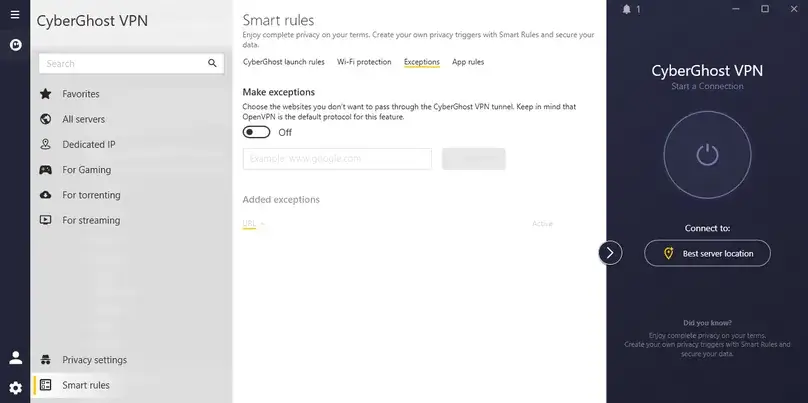
A website rule targets named domains within the provider’s supported implementation. Redirects, subdomains, content-delivery hosts, sign-in domains, and DNS handling can make the real dependency wider than the address typed into the browser. CyberGhost’s tested Windows approach was a useful reminder: website exceptions are not the same as assigning an entire Windows program to the direct route.
IP address, subnet, or CIDR rules
These rules target destination IP addresses or network ranges. CIDR is a compact notation for a block of addresses, such as an address followed by /24. Destination rules can be precise, but cloud services can change addresses, and a broad subnet can route much more traffic than expected.
Browser extensions
A VPN browser extension may proxy browser requests without controlling every application on the device. It can be useful for website-level routing, but it should not be described as equivalent to device-wide app splitting unless the provider’s implementation actually works that way.
Manual operating-system routes
A provider may document command-line, OpenVPN, WireGuard, or operating-system route rules instead of offering an in-app toggle. Those methods require more networking knowledge and careful maintenance. PrivateVPN currently documents manual Windows approaches, but ReviewsAlly did not execute that configuration during this review cycle.
Good exceptions have names
When split tunneling can be useful
Local or regional services
A bank, government site, retailer, or local service may reject or complicate access from a VPN exit. Bypassing that specific destination can help, but it is not a guarantee of acceptance.
Printers, NAS, and local resources
A local-network device may be harder to reach while a VPN is active. First check whether the app has a dedicated “allow LAN” control; that can be narrower than bypassing an entire browser.
Work or allowlisted destinations
A service may require the normal public IP or an organization-approved route. Follow employer policy and never bypass a managed security control without authorization.
Latency-sensitive apps
A call or game that does not need the VPN may avoid the VPN route. This can reduce one source of overhead, but it does not promise lower latency or fix a congested normal connection.
Separate browser jobs
One browser can use the VPN while a clean test browser uses the normal route. Keep sensitive logins out of the direct-route browser if your intention is to protect them with the VPN.
One-app VPN use
An include or inverse mode can keep only one selected application inside the VPN. Verify helper processes before treating the boundary as complete.
The privacy boundary
Traffic that bypasses the VPN gives up that route’s VPN protection
The direct-routed destination can normally see your non-VPN public IP. Your internet provider or local network also retains its ordinary visibility into the direct route’s connection metadata. HTTPS or application-layer encryption can still protect content in transit, but it does not put that traffic inside the VPN tunnel or hide the destination-facing public IP.
The largest consumer risk is often not a dramatic attack. It is an ordinary configuration mistake: the wrong executable is excluded, a helper process is missed, a broad destination range is added, or an old rule survives after the reason for it disappears. Complexity is useful only while someone still remembers why it exists.
NIST’s glossary frames split tunneling in a remote-access and organizational security context. That caution is useful, but it should not be turned into a universal claim that every consumer exception is inherently unsafe. The right question is whether the direct route is intentional, narrow, authorized, and verified.
Privacy-preserving route check
How to test VPN split tunneling safely
This consumer test checks whether one selected application shows the VPN public IP while another simultaneously shows the privately recorded normal public IP. It verifies observed public-IP routes at that moment. It is not packet capture, a complete DNS/WebRTC/IPv6 leak audit, or proof about every background process.
Before you start
- Pause work, banking, account recovery, torrenting, private communication, and other sensitive activity.
- Use two ordinary browsers or test applications with no sensitive session open.
- Read the setting carefully and identify whether selected items use or bypass the VPN.
- Choose a clearly different VPN country when practical so the routes are easier to distinguish.
- Be ready to remove the temporary rule and reconnect if either app becomes unreachable.
1. Record the normal route privately
Fully disconnect the VPN. In Browser B, open a simple public-IP display such as icanhazip or another service you trust. Record the normal public IP privately. An approximate country can help, but you do not need to record or publish a city, ISP, or precise location.
2. Configure one VPN route and one direct route
In bypass/exclude mode, designate Browser B for the direct route and leave Browser A on the default VPN route. In include/inverse mode, designate Browser A for the VPN route and leave Browser B on the default direct route. If the app supports only website or destination rules, adapt the check to that narrower target and do not call it an app-level test.
3. Reconnect and check both routes
- Close and reopen the test browsers if the provider requires it, then reconnect the VPN.
- Confirm that the VPN client reports a connected state. Change only one routing rule at a time.
- In Browser A, open the same IP-display page. The VPN-routed browser should show an address different from the private baseline and a location consistent with the chosen VPN server when available.
- While the VPN remains connected, check Browser B. The direct-routed browser should show the privately recorded normal public IP.
- Keep both applications open long enough to confirm that the paired results occurred in the same connected session.
4. Read Pass, Fail, or Inconclusive
A Pass means the selected applications followed the expected public-IP routes during this check. It does not prove that every protocol, subprocess, destination, DNS request, IPv6 path, or future session will behave identically. Before calling a clear mismatch a Fail, remove and re-add the exact executable or rule, restart the applications, reconnect the VPN, and repeat once.
5. Restore your normal configuration
Remove temporary rules, reconnect or restart the VPN, and confirm the full-tunnel or split-tunnel state you actually intend to keep. Close diagnostic tabs. Delete any temporary note or screenshot containing the baseline address when you no longer need it.
Paid Windows evidence
What we observed across nine paid VPN reviews
We purchased and reviewed these nine VPN services from May through July 2026. The table describes the Windows controls and route behavior preserved in our review records; it is not a promise that every platform, plan, app version, or future release behaves the same way. Evidence Level 4 describes the paid access and actions performed, not nine identical feature tests.
| Provider | Windows control observed | Direction in our record | Rule types observed | Route result / evidence note | Reviewed |
|---|---|---|---|---|---|
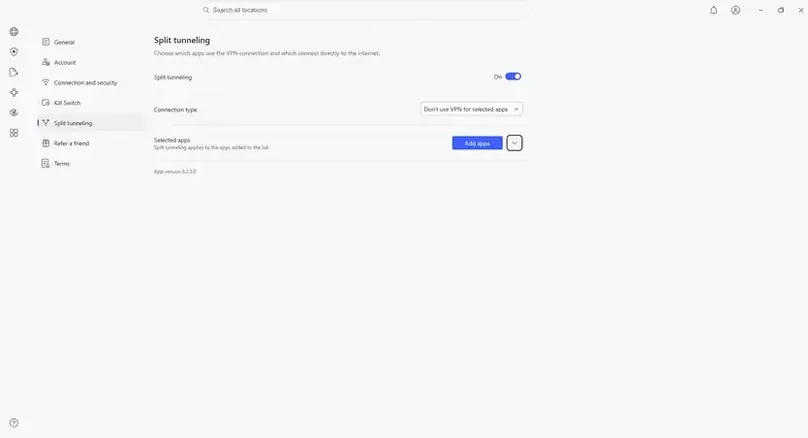
| NordVPN | Split tunneling in app settings | Bypass / split-exclude | Applications | Chrome and other selected apps retained the normal/direct public-IP route while the VPN was connected. | May–July 2026 cycle |
| Surfshark | Bypasser | Bypass / split-exclude | Applications, websites/domains, IP destinations | The recorded Windows rules behaved normally. This was the broadest preserved rule-type set in this cycle, not an overall product ranking. | May–July 2026 cycle |
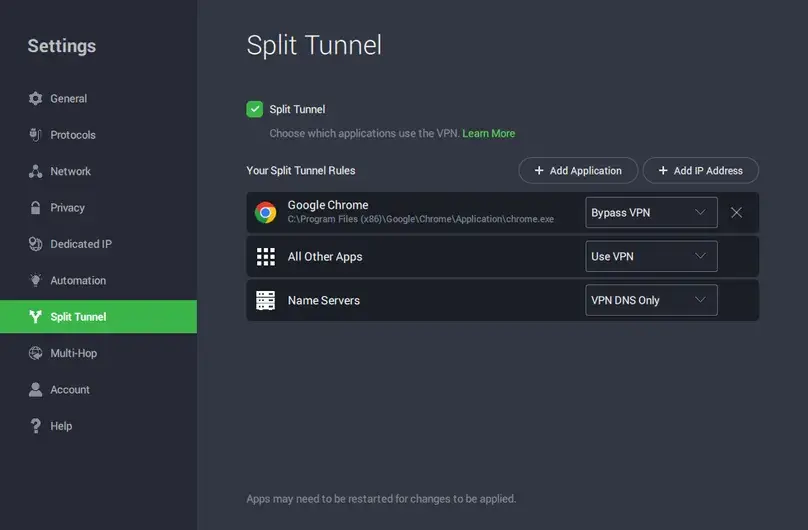
| Private Internet Access | Split Tunnel settings | Both directions | Applications, IP/CIDR destinations | Use/Only VPN and Bypass VPN behavior was checked. No website/domain rule field was found in the tested app. | May–July 2026 cycle |
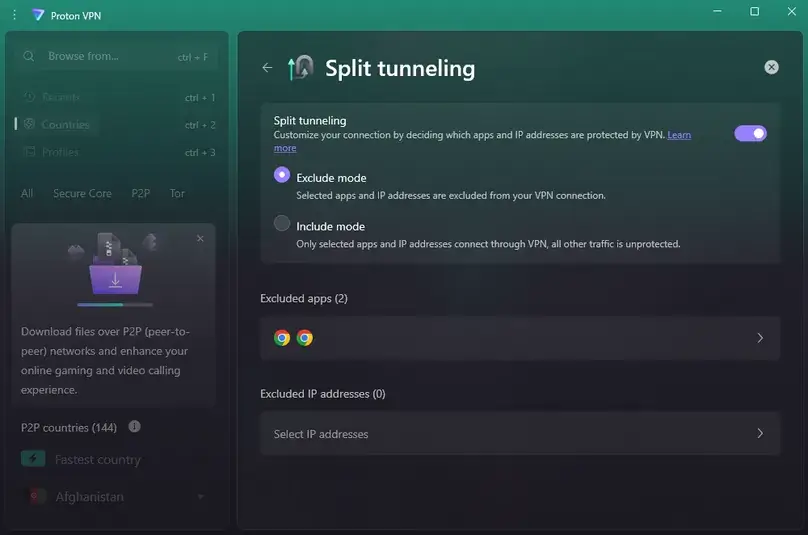
| Proton VPN | Split Tunneling settings | Both directions | Applications and IP destinations | Exclude and Include modes worked in the recorded Chrome/Edge Windows comparison. | May–July 2026 cycle |
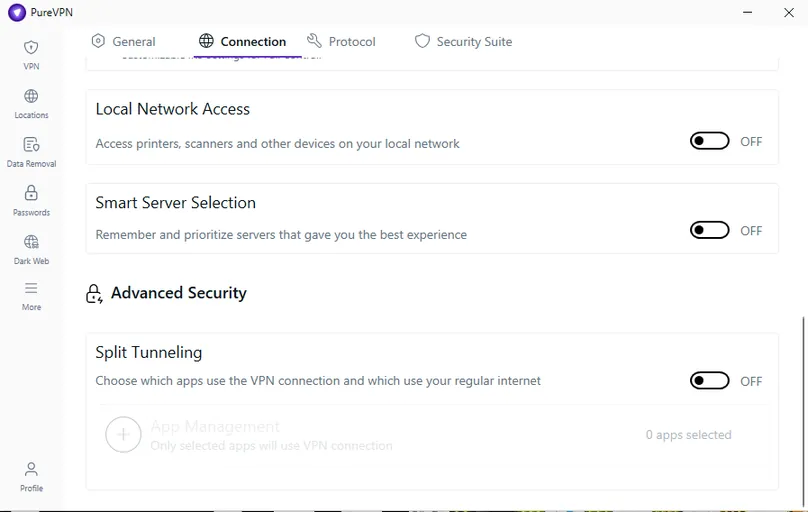
| PureVPN | Split tunneling in app settings | Include / inverse | Applications | Selected apps were designated for the VPN. The surviving notes preserve the direct-route side more strongly than a paired selected-Chrome VPN-IP capture. | May–July 2026 cycle |
| CyberGhost | Smart Rules exceptions | Website exceptions only | Websites/domains | The recorded exception worked. We did not find an app include/exclude control; Windows App Rules served a different auto-connect function. | May–July 2026 cycle |
| Turbo VPN | Split-tunneling settings in the paid app | Bypass / split-exclude | Applications, websites | Both recorded rule types behaved normally, but the surviving record does not contain a separate full IP-change capture for every rule. | May–July 2026 cycle |
| PrivateVPN | No native in-app control found | Manual routes documented; not tested | Manual destination routes | Availability inspected. ReviewsAlly did not execute the provider’s manual OpenVPN/WireGuard route method. | May–July 2026 cycle |
| VPN.ac | No in-app control found | Not found in tested workflow | None identified | The tested app/account did not expose the feature, consistent with the support answer preserved during the review. | May–July 2026 cycle |
“Not found” is a dated observation, not a permanent claim that software can never add the feature. “Manual routes documented” is not the same as a hands-on pass.
The Windows apps implemented the same idea in meaningfully different ways
NordVPN’s tested model was straightforward application bypass. Proton VPN and PIA exposed both route directions in the tested Windows apps. PureVPN used a selected-app/include model, the opposite of a typical bypass list. CyberGhost’s tested Windows exceptions were website-oriented. Surfshark exposed especially broad rule types in our record, while Turbo VPN, PrivateVPN, and VPN.ac show why a single “split tunneling: yes/no” checkmark throws away useful information.
Official-source layer
Platform support is not one universal feature
The same provider can expose different directions and rule types on Windows, Android, macOS, Linux, iOS, TV apps, or browser extensions. The table below summarizes current provider documentation, not ReviewsAlly hands-on testing on every listed platform.
Provider-documented support — checked August 11, 2026; not independently tested on every listed platform.
| Provider | What current documentation covers | Difference worth checking | Official source |
|---|---|---|---|
| NordVPN | Windows, Android, Android TV, and a Linux allowlist | Windows/Android documentation centers on app bypass; Linux’s allowlist can exclude ports or subnets and has different kill-switch implications. | NordVPN support |
| Surfshark | Windows, macOS, Android, iOS, and browser-extension use | Available rule types and reverse behavior vary. Do not assume the Windows app/site/IP set is reproduced everywhere. | Surfshark Bypasser |
| Private Internet Access | Desktop help for Windows, macOS, and Linux | App direction controls and IP/subnet behavior vary by platform; destination rules are not website-name rules. | PIA desktop guide |
| Proton VPN | Windows, Linux GUI, experimental macOS support, Android, Android TV, and browser extensions | Modes, targets, protocol limitations, and kill-switch compatibility differ substantially by platform. | Proton VPN support |
| PureVPN | Selected-app setup in the current Windows guide | The documented Windows direction sends selected apps through the VPN; read the current guide before assuming bypass behavior. | PureVPN Windows guide |
| CyberGhost | Windows Smart Rules, including website exceptions | Windows App Rules can automate connection behavior but should not be mislabeled as app-based split routing. | CyberGhost Smart Rules |
| PrivateVPN | Manual OpenVPN GUI routing for Windows | This is a technical route method, not a native toggle, and ReviewsAlly did not execute it in the current review cycle. | PrivateVPN manual guide |
Android’s per-app VPN framework can use allowed or disallowed application lists, and those lists are established when the VPN connection is built. Android’s developer documentation explains the platform mechanism; it does not prove that every consumer VPN exposes every option. Likewise, Microsoft’s Windows VPN routing documentation describes route behavior at the operating-system level, not the quality of a provider’s interface.
Three different questions
Split tunneling is not a kill switch or a leak test
| Control or test | Question it answers | How to interpret a direct route |
|---|---|---|
| Split tunneling | Which named traffic is intentionally assigned to the VPN or normal connection? | An expected, configured direct route is the feature working as intended. |
| Kill switch | What happens to protected traffic when the VPN tunnel drops under a defined condition? | Excluded apps may be treated differently; test the documented mode and scope. |
| Leak test | Does traffic or identifying network information escape unintentionally? | An intentional bypass should not automatically be called a leak. |
A per-app rule can make one program behave differently from the rest of the device, including during a failure test. Before grading a result, document the split policy and read the provider’s kill-switch scope. Our VPN Kill Switch guide explains manual Disconnect, unexpected failure, and Inconclusive results. The broader IP, DNS, and WebRTC evidence boundary remains in How We Test VPNs.
Debug one layer at a time
Why a split-tunneling rule may not work
- Confirm the direction. Does the selected item use the VPN, or bypass it? Provider labels are not reliable shorthand.
- Select the exact executable or destination. A shortcut, launcher, or domain label may not be the process or address actually carrying traffic.
- Add required helper processes. Some applications divide network work across child processes or services.
- Close and reopen the application. Existing connections may keep their old route until restarted.
- Reconnect or restart the VPN client. Many apps rebuild routing rules only when the tunnel is established.
- Remove overlapping rules temporarily. App, website, IP, LAN, and extension rules can interact in ways the interface does not explain well.
- Separate the extension from the device VPN. A browser extension can control only browser traffic while the desktop VPN controls another layer.
- Use a clearly different VPN location. Similar locations make route interpretation harder.
- Investigate IPv4, IPv6, and DNS only after the basic route is clear. Conflicting address families or DNS behavior can make a public-IP result inconclusive.
- Return to full tunnel if you cannot verify the route. Do not permanently disable security software or make broad firewall exceptions for a consumer test.
A measurement trap
Split tunneling can invalidate a VPN speed test
If the browser or speed-test application bypasses the VPN, its result measures the normal connection rather than VPN performance. A very fast result can therefore be evidence of the wrong route, not a wonderfully aerodynamic tunnel.
Disable split tunneling during general VPN benchmarks. If the routing rule is the subject of the test, document the exact application and verify its public IP before every run. Then keep the server, protocol, device, connection type, and test sequence as consistent as practical. Our VPN speed-test and speed-loss guide explains baselines, medians, and route control in more detail.
What our evidence proves
Limits of our split-tunneling test
We spent substantial time testing the paid Windows VPN workflows in this review cycle, and the recorded results reflect what the apps did in those sessions. As the first tests were completed, our methodology became more consistent and detailed, so small differences exist in what was preserved for each provider. The underlying observations and public-IP results are genuine. With more resources, a future cycle could add synchronized packet capture, identical multi-platform retests, DNS/IPv6 instrumentation, and repeated version checks.
The published protocol verifies selected public-IP routes at a point in time. It does not inspect every packet or background process, audit source code or cryptography, perform penetration or enterprise security testing, generalize a Windows result to another platform, or guarantee that a future app version will behave the same way.
Research record
Sources and research notes
ReviewsAlly’s original evidence comes from the supplied split-tunneling procedure, nine paid VPN Evidence Logs, final dictated research, and the Windows screenshots shown above. Current platform claims were checked against first-party documentation on August 11, 2026.
Technical and platform sources
- NIST CSRC: split tunneling glossary — enterprise/remote-access terminology.
- Microsoft Learn: Windows VPN routing — full- and split-tunnel route behavior.
- Android Developers: VPN service and per-app routing — allowed/disallowed application mechanisms.
- icanhazip — optional external public-IP display; use under that service’s own practices.
Provider documentation
- NordVPN split-tunneling support
- Surfshark Bypasser documentation
- PIA desktop split-tunneling guide
- Proton VPN split-tunneling support
- PureVPN Windows split-tunneling guide
- CyberGhost Windows Smart Rules guide
- PrivateVPN manual Windows routing guide
Product interfaces and support pages change. Treat platform and feature summaries as dated. A current official support statement is availability evidence, not an independent performance or security test.
Common questions
VPN Split Tunneling FAQ
What is VPN split tunneling?
It is a routing policy that sends selected traffic through the VPN while other traffic uses the normal connection. The selected items may be apps, websites, destination IPs, subnets, or manually defined routes.
Is split tunneling safe?
It can be reasonable for a narrow, intentional exception you understand and verify. It increases configuration risk because bypassed traffic does not use the VPN route and a mistaken rule can expose traffic you meant to protect.
Is bypassed traffic unencrypted?
It is not protected by the VPN tunnel. HTTPS or app-level encryption may still protect its content, but the destination normally sees the non-VPN public IP and the route retains normal ISP/local-network visibility.
What is the difference between split tunnel and full tunnel?
Full tunnel sends all eligible traffic through the VPN. Split tunnel creates at least one intentional exception or selected VPN-only route. See the three routing models.
What is split-include vs. split-exclude?
Split-exclude keeps the VPN as the default and sends selected traffic direct. Split-include keeps the normal connection as the default and sends only selected traffic through the VPN.
Does split tunneling increase VPN speed?
It can reduce how much traffic uses the tunnel, but it does not make the VPN route itself inherently faster. A speed test that bypasses the VPN is measuring the normal connection. Normalize the route before comparing results.
Can split tunneling help with banks or local services?
Bypassing a specific service can help when it rejects a VPN exit or requires a local address, but it cannot guarantee acceptance. The direct-routed service will normally see the non-VPN public IP.
How do I test VPN split tunneling?
Privately record the normal public IP, configure one VPN-routed application and one direct-routed application, connect the VPN, and compare both routes in the same session. Follow the full privacy-preserving test.
Does split tunneling work with a kill switch?
Sometimes, but excluded traffic may be handled differently by provider, mode, and platform. An intentional bypass is not automatically a kill-switch failure. Test the documented scope and read our Kill Switch guide.
Why is my split-tunneling rule not working?
Common causes include choosing the opposite direction, adding the wrong executable, missing a helper process, not restarting the app or VPN, overlapping rules, or confusing a browser extension with the desktop tunnel.
Does split tunneling work on iPhone or Mac?
It depends on the provider, app version, operating system, and rule type. Current provider documentation can differ sharply from the Windows implementation, so check the exact platform article before buying.
Are there free VPNs with split tunneling?
Some free plans may advertise it, while others reserve it for paid accounts or limit the supported platforms. Do not choose a free VPN on this feature alone; verify the plan, data model, platform behavior, and privacy terms.
The practical default
Keep full tunneling until an exception earns its place
Keep full tunneling as the default. Enable split tunneling when you have one defined route problem, choose the narrowest rule that solves it, and verify both the VPN and direct routes before trusting the configuration.
If the exact rule type matters, read the linked hands-on provider reviews. If your current client cannot create a route you can understand and verify, return to our Best VPN Services comparison and evaluate alternatives by the behavior you need—not by a lonely feature checkmark.